
Requirements for using the web player:
- A stable internet connection
- The better and faster the internet connection is, the better the experience will be as well.
- A connection without a strict firewall
- Web browser (Chrome, Safari, Edge and Firefox are currently supported). The web browser also needs to be updated.
Settings
The settings allows the user to tailor the experience to their needs. Here you can find the following:
- Sound settings - Change microphone input
- Toggle text input - Turn on or off the text input field
- Toggle subtitles - Turn on or off the subtitles
- Log - See the dialogue history between you and the actor in the RolePlay
- Quit - Disconnect from the RolePlay session
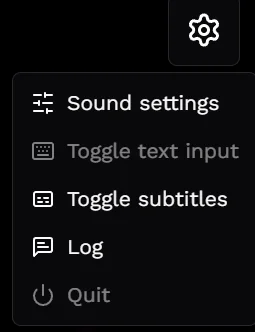
In the bottom right corner you can also turn on or off the sound coming from the Web Player.

Sound settings
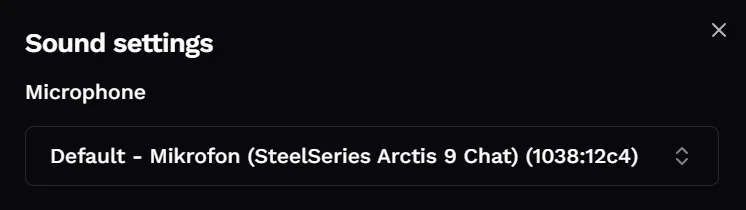
Here you can change what microphone is currently being used by the Web Player to talk to the actors in the RolePlay.
Push-to-talk
The push to talk in the top left corner in PC and middle right of the screen on the phone will indicate whether the button is active and you can speak or not. If you’re having trouble using the push-to-talk you can find more information on the Troubleshooting - Web Player page.
Text input
This lets you send messages to the actor in the RolePlay. To enable this, you can toggle the text input in the settings menu.

If you have any troubles with the Web Player, you can check out our Troubleshooting help article here: Troubleshooting - Web Player